March 31, 2026
So, can you actually cancel a PayPal transaction? The short answer is yes, but there's a huge catch. It all comes down to one crucial detail: the transaction's status. You only have the power to cancel it yourself if the payment is still marked as 'Pending' or 'Unclaimed'.
If the money has already landed in the recipient's account—showing as 'Completed'—the cancel button disappears. At that point, you're no longer canceling; you're asking for your money back through a refund or, if things go south, a formal dispute.
We’ve all had that moment of panic—you send money and instantly realize you’ve made a mistake. Maybe it was the wrong email address, or you accidentally paid for an event you can no longer attend. With PayPal, your ability to quickly fix this hinges entirely on where the money is in its journey.
This is especially critical if you're an event organizer or community manager. You're constantly juggling payments for tickets, memberships, and maybe even digital goods. A simple typo in an email address can be fixed in seconds if you catch it while the payment is still pending.
Once a payment is completed, however, the dynamic shifts. The money is gone from your account, and you've moved from a simple cancellation to a negotiation. Now you have to contact the seller directly and request a refund. Understanding this difference is the first and most important step to getting your money back without a headache.
Let's break down what these statuses really mean for you.
When you see ‘Pending’ or ‘Unclaimed’ in your activity log, it's good news. This usually happens for one of two reasons: the person you sent money to hasn't accepted it yet, or you sent it to an email address that isn't connected to a PayPal account. In either case, the funds are in limbo, and you're still in control. You can go in and cancel it yourself.
But a ‘Completed’ status is final. It means the transfer was successful, and the money is now in the recipient's PayPal balance. Trying to cancel it at this stage is like trying to un-send a letter that's already been delivered. It's just not possible. Your only recourse is to contact the recipient and ask for a refund. If they refuse, your next stop is PayPal's Resolution Center to file a dispute.
Key Takeaway: The moment you spot an error, check your PayPal activity. If it says 'Pending', you can cancel it. If it says 'Completed', you need to shift your strategy to getting a refund.
To make it even clearer, here's a quick rundown of your options based on what you see in your account.
| Transaction Status | Can You Cancel Directly? | Your Next Action | Common Scenario |
|---|---|---|---|
| Pending | Yes | Log in, find the transaction in your Activity, and click the "Cancel" button. | Sent money to an email address not linked to a PayPal account. |
| Unclaimed | Yes | Same as above. Find the transaction and click "Cancel". | The recipient hasn't accepted the payment yet. |
| Completed | No | Contact the seller to request a refund. If that fails, open a dispute in the Resolution Center. | You bought an item and it arrived broken, or you need to back out of a paid event. |
This simple check—pending vs. completed—is your first step and determines everything that follows.
This decision-making process is fairly straightforward once you know what to look for.
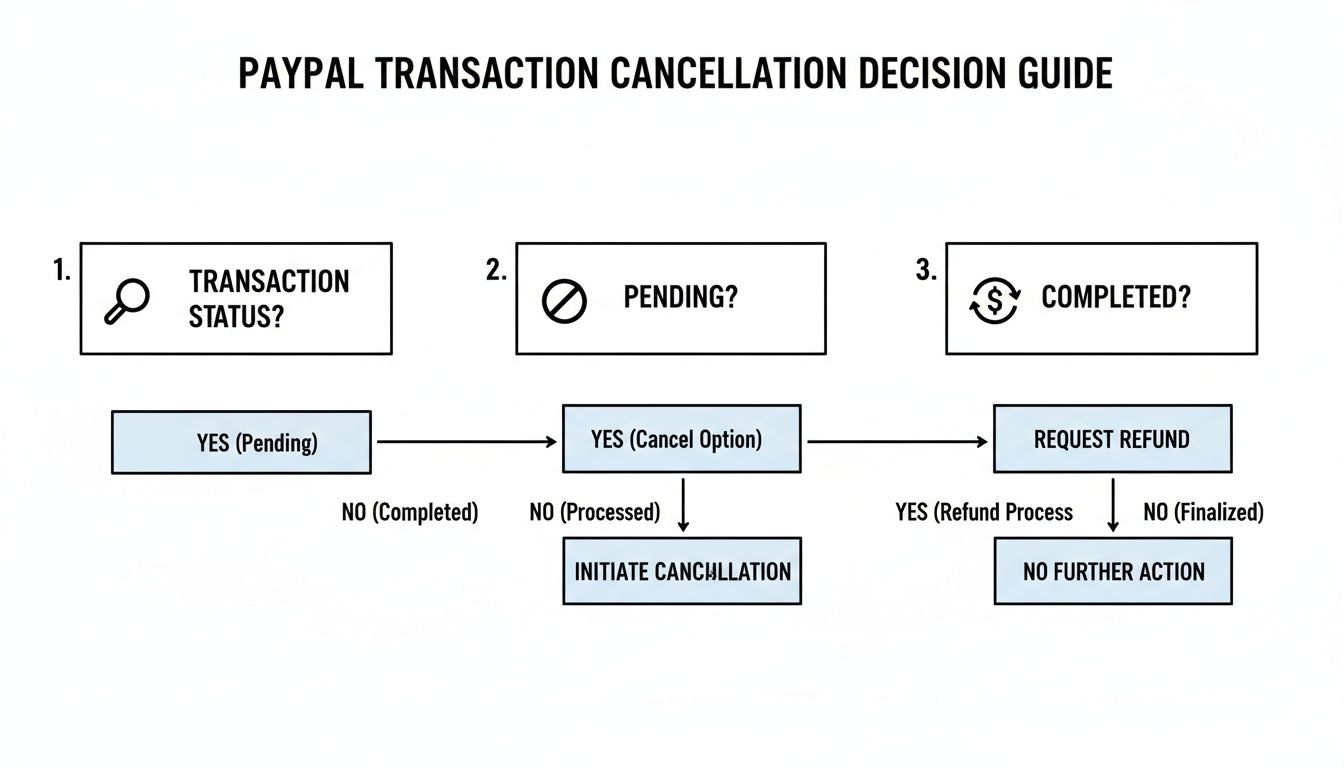
As the flowchart shows, your path splits right at the start based on the payment's status. For those of you managing communities and selling tickets or digital products, mastering this process is key to smooth financial operations and happy customers.
Speaking of selling digital goods, setting up your payment process correctly from the start can prevent many of these issues. If you're looking for platforms that integrate well with payment processors, check out our guide on the best places to sell digital products.
Let's start with the best-case scenario for a PayPal cancellation: you check the transaction and see it's marked as ‘Pending’ or ‘Unclaimed’. Think of this as catching a mistake before it causes any real trouble. It means the money hasn't actually landed in the recipient's account yet, so you have a brief, easy window to pull it back.
Most of the time, this happens because of a simple typo. You might have misspelled the recipient's email address or sent it to one they don't have linked to their PayPal. The payment is essentially stuck in digital limbo, waiting for someone to claim it or for you to cancel it.
Canceling a pending payment is refreshingly simple—no need to contact the seller or open a case. You're in complete control.
First, log in to your PayPal account and head straight to your Activity page. This is the running list of all your ins and outs.
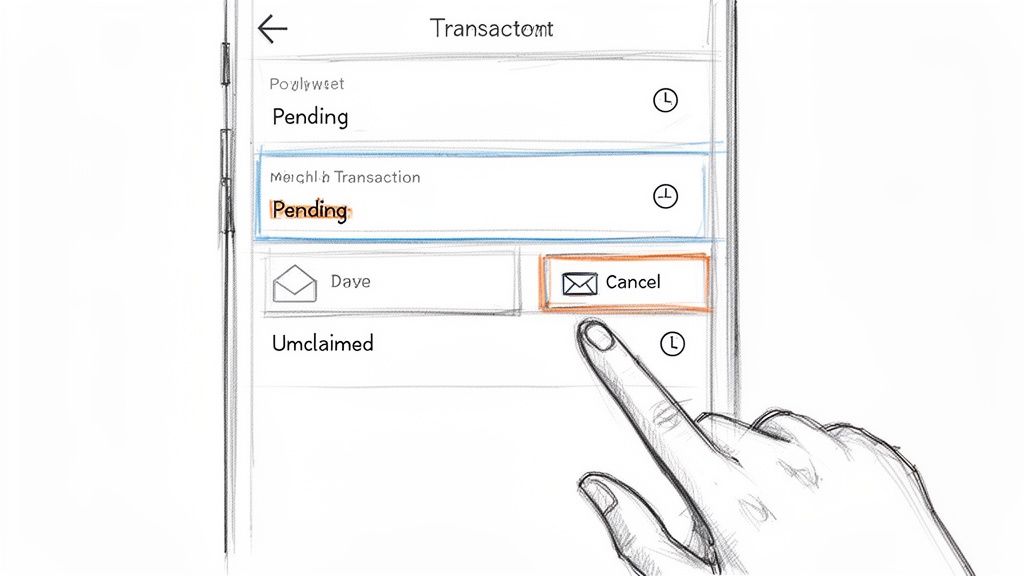
Scroll through the list to find the payment in question. It’ll be clearly marked as pending, and right next to it, you should see the option to “Cancel.” If you see that link, you're in luck. It only shows up for transactions that haven't been completed.
Click "Cancel," then on the next screen, confirm you want to "Cancel Payment." That's it. The transaction is stopped in its tracks.
The funds will then be returned to your original payment method. If you paid with your PayPal balance, the money usually shows up again almost instantly. If you used a bank account or credit card, it might take a few business days for the refund to process, just like any standard bank reversal.
It helps to know exactly why a payment gets stuck in this unclaimed state. For event organizers using a platform like GroupOS, a pending payment can throw off your headcount, so understanding the cause is key.
A payment will typically hang in limbo for one of these reasons:
It's worth knowing that PayPal has a built-in safety net. If a payment goes unclaimed for 30 days, PayPal will automatically cancel it and refund your money.
While the automatic 30-day refund is nice to have, waiting a whole month is rarely practical, especially when you've got event tickets or community fees on the line. An unclaimed payment for a GroupOS event means an unconfirmed spot, which can mess up your planning.
It's always better to be proactive. By canceling the payment yourself, you free up the funds immediately. You can then fix the typo or confirm the correct email address and resend the payment, ensuring your attendee is confirmed and your books are accurate.
So, you're looking at a transaction, and the status says 'Completed'. This means the easy 'Cancel' option is off the table—the money has officially changed hands. From here on out, we're talking about a refund.
This is a familiar situation for anyone managing sales, especially event organizers using GroupOS. An attendee can't make it, or a new member changes their mind. Knowing how to handle this smoothly is key to keeping your customers happy and your books clean.
Thankfully, PayPal gives you a generous window to handle this. You have a full 180 days from the transaction date to issue a refund directly through the platform.
Just head over to your Activity feed and locate the original payment. When you click to see the details, you’ll find a clear “Issue a refund” button waiting for you.
Once you click that, you get to decide how much to send back. You can return the full amount or enter a smaller figure for a partial refund. This is where the partial refund option comes in handy, especially if your policy includes keeping a non-refundable deposit for a canceled event ticket.
After you confirm the amount, the funds are sent back to the buyer’s original payment method. It’s worth noting that refunds can get tricky in certain edge cases, so understanding what happens with a refund to a cancelled credit card can give you a deeper understanding of the payment ecosystem.
Alright, let's talk about the fees, because this is where many sellers get caught by surprise. When you issue a refund, PayPal gives the customer their money back, but the original transaction fees are generally not returned to you. This is a big change from how things used to be, and it's a direct hit to your revenue.
Think about it: you sell a $100 workshop ticket. PayPal takes its cut, maybe around $3.49, leaving you with $96.51. If you later issue a full $100 refund, that entire amount comes out of your PayPal balance. The $3.49 fee? It’s gone. You've essentially paid for a transaction that didn't stick.
Important: Always factor non-refundable transaction fees into your budget and refund policy. For anyone selling at volume, these small amounts stack up and can become a significant cost.
This is especially critical for groups with recurring memberships. If you're juggling different payment systems, it helps to know how each one handles cancellations. For instance, if you're also using Stripe, knowing the process to manage and end subscriptions will give you a more complete financial overview.
Pushing the refund button is only step one. Good communication is what closes the loop and prevents a confused customer from emailing you a few days later asking, "Where's my money?"
A silent refund is a missed opportunity. Once you've processed it, send a quick, professional message. PayPal often gives you a "note to buyer" field during the refund process, which is perfect for this. A separate email works just as well.
Sample Refund Notification Message
"Hi [Customer Name],
Just a quick note to let you know we've processed your refund of [Amount] for [Event Name/Product]. The funds are on their way back to your original payment method.
It can sometimes take 3-5 business days for the refund to appear on a bank or credit card statement, depending on the bank.
All the best,
[Your Name/Organization Name]"
This simple courtesy sets clear expectations on timing and confirms you’ve taken care of their request. For GroupOS community managers, this kind of professional follow-up is what helps retain members and build goodwill, even when they have to cancel.
So, you've tried to get a refund, but the seller has gone silent. Maybe they're flat-out refusing to cooperate, or worse, you're starting to get that sinking feeling you've been scammed. When friendly communication hits a dead end, it’s time to stop negotiating and start escalating.
This is exactly what PayPal’s Resolution Center was built for.
Filing a dispute is the formal way of saying, "Hey PayPal, we have a problem here that we can't solve on our own." It brings structure to the chaos and forces the other party to respond under PayPal's official watch. Think of it as your safety net when a simple transaction goes sideways.
It’s easy to get the terms mixed up, but the distinction is crucial.
A dispute is the first step. You open it in the Resolution Center, which basically opens a mediated chat between you and the seller on PayPal's platform. The goal is to work it out together.
If that conversation goes nowhere, you can escalate the dispute to a claim. This is you officially asking PayPal to step in, review the evidence, and make a final ruling. You have 20 days from the day you open the dispute to escalate it to a claim, so don't let that deadline pass.
Knowing when to pull this trigger is key. A dispute isn't for a simple case of buyer's remorse; it's for when there’s a genuine breakdown and the seller won't make it right.
You'll almost always open a dispute for one of two reasons:
For an event organizer using GroupOS, an INR claim could pop up if an attendee paid but insists they never got their ticket confirmation email. A SNAD claim might happen if you sold a "VIP Experience" with a meet-and-greet, but the headliner was a no-show.
My best advice: Get your ducks in a row before you even click "Report a Problem." Collect every email, receipt, screenshot of the item description, and any messages between you and the seller. The more documentation you have, the stronger your case will be if you have to escalate to a claim.
While it might seem a little intimidating, the process itself is pretty logical.
First, you’ll log into your PayPal account and navigate to the Resolution Center. From there, you can report a problem and select the transaction in question. PayPal will ask you to choose the reason for your dispute—either "Item Not Received" or "Significantly Not as Described." Pick the one that truly fits your situation.
Once you submit the dispute, the seller gets notified, and the clock starts ticking. This is your window to communicate directly through PayPal, present your evidence, and hopefully, reach a resolution. The seller might offer a full refund, provide shipping proof, or explain their side of the story.
But if that 20-day window is closing and you're no closer to an agreement, you need to act. Escalate the dispute to a claim before it expires. At that point, PayPal’s team takes over, reviews everything, and usually makes a final decision within 30 days.
The scale of these issues is massive. In 2026, PayPal is on track to process well over $1.79 trillion in payments. With that kind of volume, disputes are just a part of the ecosystem, and many stem from failed cancellation attempts. As detailed in a deep dive on the complexities of PayPal disputes, "Item Not Received" claims are incredibly common, forcing some merchants to handle hundreds of disputes every month.
Ultimately, the dispute process is your formal path to a resolution when a simple attempt to cancel a PayPal transaction goes wrong. It's a powerful tool, but one to be used responsibly and only after direct communication has completely failed.
Let's be honest: the best way to handle payment problems is to prevent them from ever happening. Moving from a reactive, "fire-fighting" mode to a proactive one will save you countless hours, protect your revenue, and ultimately keep your attendees and members happy.
For anyone organizing events or managing a community, this is non-negotiable. It’s not just about good service; it's a core business strategy. Every dispute you avoid is money in the bank and time back in your day. The goal is to build a payment environment so transparent that a customer never has to second-guess a charge or search for how to cancel a PayPal transaction. It all starts with setting crystal-clear expectations.
Think of your refund and cancellation policies as your first line of defense. They do you no good buried in the fine print of a dense terms-of-service document. They need to be front and center, right where people make decisions—on your event registration forms, membership sign-up pages, and at checkout.
A vague policy is practically an open invitation for disputes. Be painfully specific about timelines, conditions, and any fees that are non-refundable.
When people know the rules before they click "buy," they're making an informed choice. This builds trust and dramatically reduces the friction that leads to chargebacks when their plans change.
Confusion is the number one cause of payment disputes. A customer scrolls through their statement, sees a charge they don’t recognize, and their first move is often to call their bank. You can get ahead of this with solid, automated communication.
As soon as a purchase is complete, they should receive a detailed confirmation email that includes:
This email acts as their digital receipt and a crucial reference point, stopping that "What is this charge?" moment in its tracks. This is especially vital for international attendees. As PayPal's own data highlights, cross-border sales often see higher failure rates, many of which are tied to cancellation attempts. Getting familiar with the trends shaping PayPal's ecosystem can give you a major leg up in the global payment game.
Modern event platforms have tools specifically designed to shut down common dispute types before they even start. If you're using GroupOS, many of these features are already built into your workflow.
The 'Item Not Received' dispute is a classic headache, especially for digital goods and event tickets. The buyer simply claims they never got what they paid for. The key is creating an undeniable digital paper trail that proves you delivered.
For instance, using a QR code check-in feature at your events is a game-changer. When an attendee's ticket is scanned, you create a timestamped record proving they were there and "received" the item they purchased—the event experience itself. That simple scan provides concrete evidence that can stop a potential dispute dead in its tracks.
Similarly, keeping a clean and organized member database is crucial for subscription-based communities. You can learn more about how to manage subscriptions to ensure your records are always accurate. By weaving together clear policies, proactive communication, and smart technology, you build a system so robust you'll rarely have to worry about how to cancel a PayPal transaction again.
Even after you've got the basics down, a few tricky questions always seem to pop up when you're trying to cancel a PayPal transaction. The details really matter, especially when your money—or a customer relationship—is on the line. Let's walk through some of the most common scenarios I see, so you can handle them with confidence.
We’ll dig into refund timelines, what happens with credit card payments, how to stop subscriptions, and the often-frustrating topic of transaction fees. My goal is to give you clear, straight-to-the-point answers you can actually use.
This is the number one question for a reason, and the answer comes down to how you paid in the first place.
If you funded the purchase with your PayPal Balance, you’re in luck. The moment a payment is canceled or refunded, the money usually reappears in your balance almost instantly.
Things are a bit different if you used a credit or debit card. Once PayPal processes the refund, they send the money back to your card company. From there, it typically takes 3 to 5 business days to show up on your statement. Be patient, though—in some rare cases, depending on the bank, it can take up to 30 days.
When you cancel a pending payment or get a refund for a credit card transaction, the process is clean and simple. PayPal just reverses the charge, sending that instruction back to your credit card issuer.
The key thing to remember is that the money will show up as a credit on your card statement, not in your PayPal balance. This makes sense, as the funds never came from your PayPal account to begin with.
Absolutely, and it’s a crucial skill to have. You can't just cancel a single payment from a subscription after it’s gone through. What you need to do is cancel the pre-approved payment agreement itself, which stops all future charges from that merchant.
Here’s how you can manage this right inside your PayPal account:
Doing this tells PayPal to stop authorizing payments to that merchant. I always recommend also contacting the merchant directly to let them know you're canceling. This ensures they close your account on their end, too. If you're interested in the bigger picture, reading up on customer self-service can offer some valuable insights.
This is a major point of frustration for many sellers, and the answer is unfortunately no. According to PayPal's current policy, when you issue a refund, PayPal does not return the original variable transaction fee they charged you.
For example, you sell a $100 event ticket and get hit with a $3.49 fee, netting you $96.51. If the buyer needs a refund, you have to send back the full $100 from your account. You've lost that $3.49 fee, meaning the canceled sale actually cost you money.
This policy makes having a clear refund process non-negotiable for any business. Those unreturned fees can add up fast. It's a growing headache for merchants, especially with global eCommerce fraud losses on the rise. Some reports show that merchants can lose 3-5% of their revenue to these kinds of issues and spend dozens of hours a month just managing disputes, a problem highlighted in recent research on PayPal's transaction ecosystem.
As an event organizer or community manager, getting ahead of these problems is far better than cleaning them up later. GroupOS gives you the tools you need—from transparent ticketing and registration to secure QR code check-ins—to create a payment environment that minimizes friction and disputes. Discover how GroupOS can help you reduce disputes and streamline your operations.