May 16, 2026
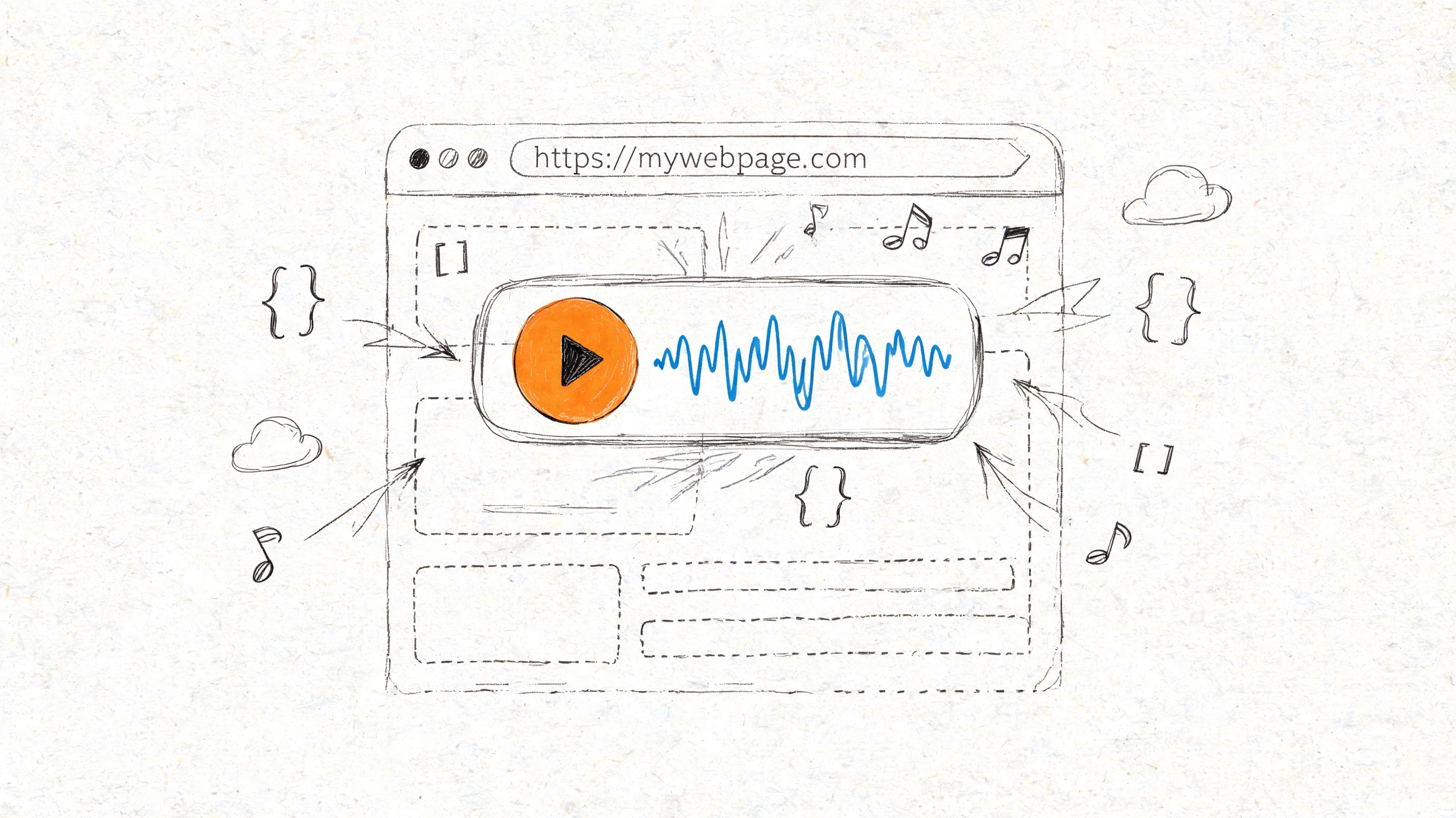
You've got an audio file ready. Maybe it's a conference recap, a member-only interview, a sponsor message, or a welcome note from your executive director. The easy part was recording it. The harder part is getting that audio onto your site in a way that works for members.
That's a common stumbling block. Teams either paste in the first embed they can find and hope it looks acceptable, or they overcomplicate the project and turn a simple publish task into a mini development sprint.
A good audio player embed sits in the middle. It should be easy for a community manager to publish, clear for members to use, and solid enough that a developer won't have to clean it up later.
A lot of community content is consumed while people are doing something else. They're commuting, walking between sessions at an event, reviewing notes after a webinar, or catching up between meetings. Audio fits that reality better than a long article or a video that demands full attention.
That's why embedded audio works well for professional organizations. You can place a board update on a member resource page, publish an event debrief inside a recap post, or add a short orientation message to an onboarding page. The content feels more personal than text alone, but it's still easier to produce than polished video.
For a community manager, this usually starts with a practical need. You have a file. You need it on a page. You want members to press play without downloading anything, opening another app, or getting lost in a maze of links. If the page already supports articles, landing pages, or discussion posts, audio becomes one more useful format in the content mix, alongside the ideas in this guide to creating engaging community content.
Audio works best when it removes friction. If members have to leave your site to listen, many won't.
The value isn't only convenience. Audio also helps organizations reuse what they already have. A keynote can become an on-demand recap. A panel can become a podcast episode. A member Q&A can become a searchable resource page with a player and transcript.
That's where the true opportunity lies. Embedded audio isn't just a media feature. It's a publishing format that can support community engagement, education, and post-event follow-up without requiring a full media production stack.
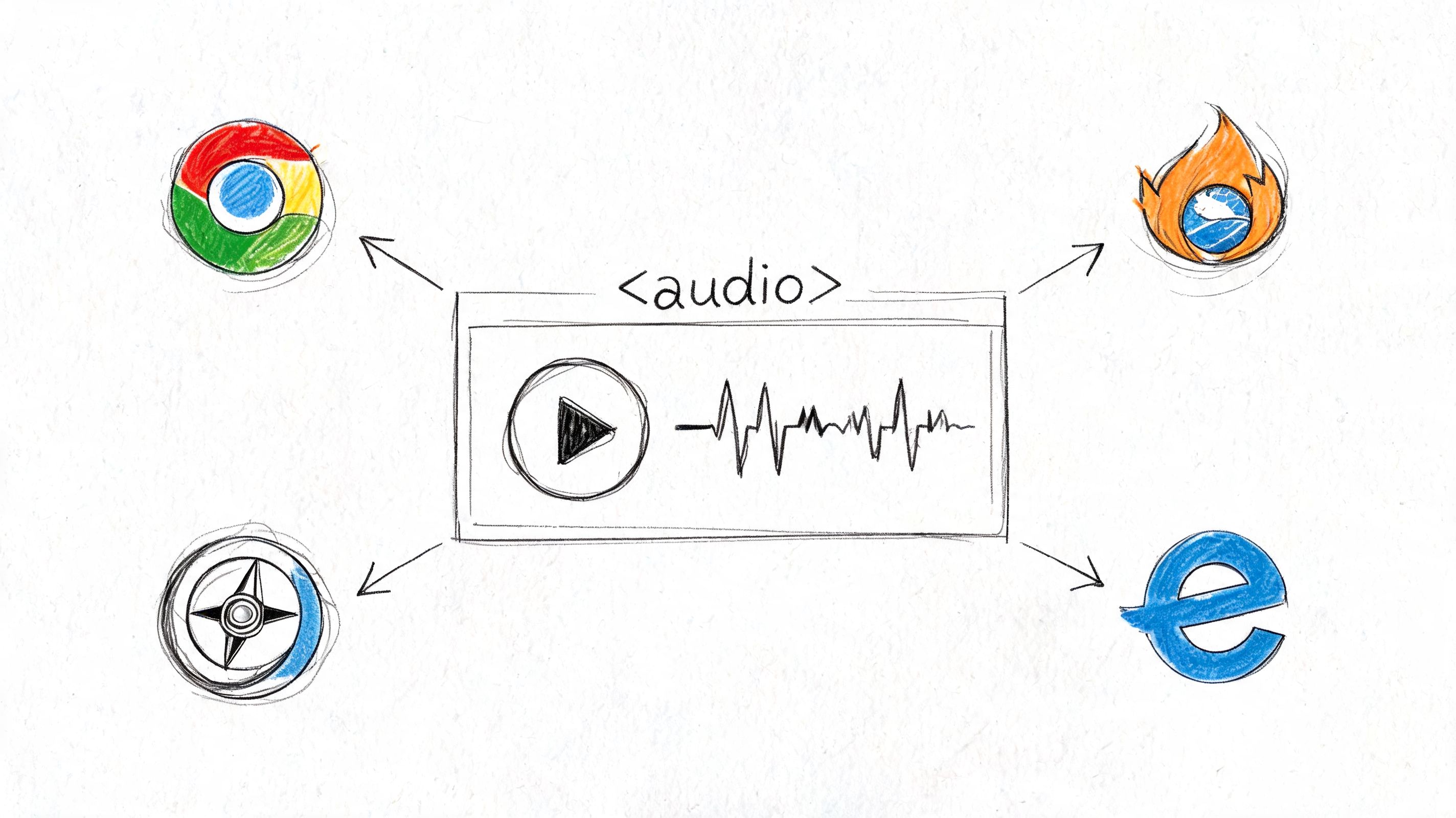
If you want the fastest path from audio file to playable content, start with the native HTML <audio> element. It's built into the web platform, works in modern browsers, and doesn't require a third-party service just to play a file.
Paste this into an HTML block or template:
That gives you a working player with built-in controls. Users can usually play, pause, scrub, and adjust volume right away.
If you want broader format support, use <source> elements instead of a single src:
This approach is practical when you control the site and the file hosting. It's also useful when you don't want branding from another platform wrapped around your content.
A few attributes do most of the work:
controls gives users visible playback controls. In most cases, you want this on.src points to the audio file if you're using the short version.autoplay tries to start playback automatically, but browser policies often block that behavior.loop restarts the file after it ends.preload hints how much media the browser should fetch up front.A slightly fuller example looks like this:
Using preload="metadata" is a sensible default for content pages. It lets the browser fetch basic file information without aggressively loading the whole file at once.
Practical rule: Use native
<audio controls>when speed, simplicity, and broad compatibility matter more than custom branding.
Native audio is good for:
It's weaker when you need polished brand consistency. MDN's HTML audio reference notes that native audio controls aren't fully stylable with CSS, and the interface differs across browsers. That means the same player may look one way in Chrome and another in Safari.
There's also a hosting tradeoff. MDN notes that audio can be embedded using HTTP(S) or Data URLs, but Data URLs are a poor choice for anything beyond very small clips because they bloat the HTML and can hurt page performance. For normal site use, host the file over HTTP(S) and let the browser cache it.
If you're a community manager working in a CMS, native audio is often enough for internal updates, archives, training modules, or simple member resources. Developers can always upgrade later to custom controls or analytics-heavy players.
The mistake is skipping the simple option because it looks too basic. Basic is fine when the content matters more than the chrome around it.
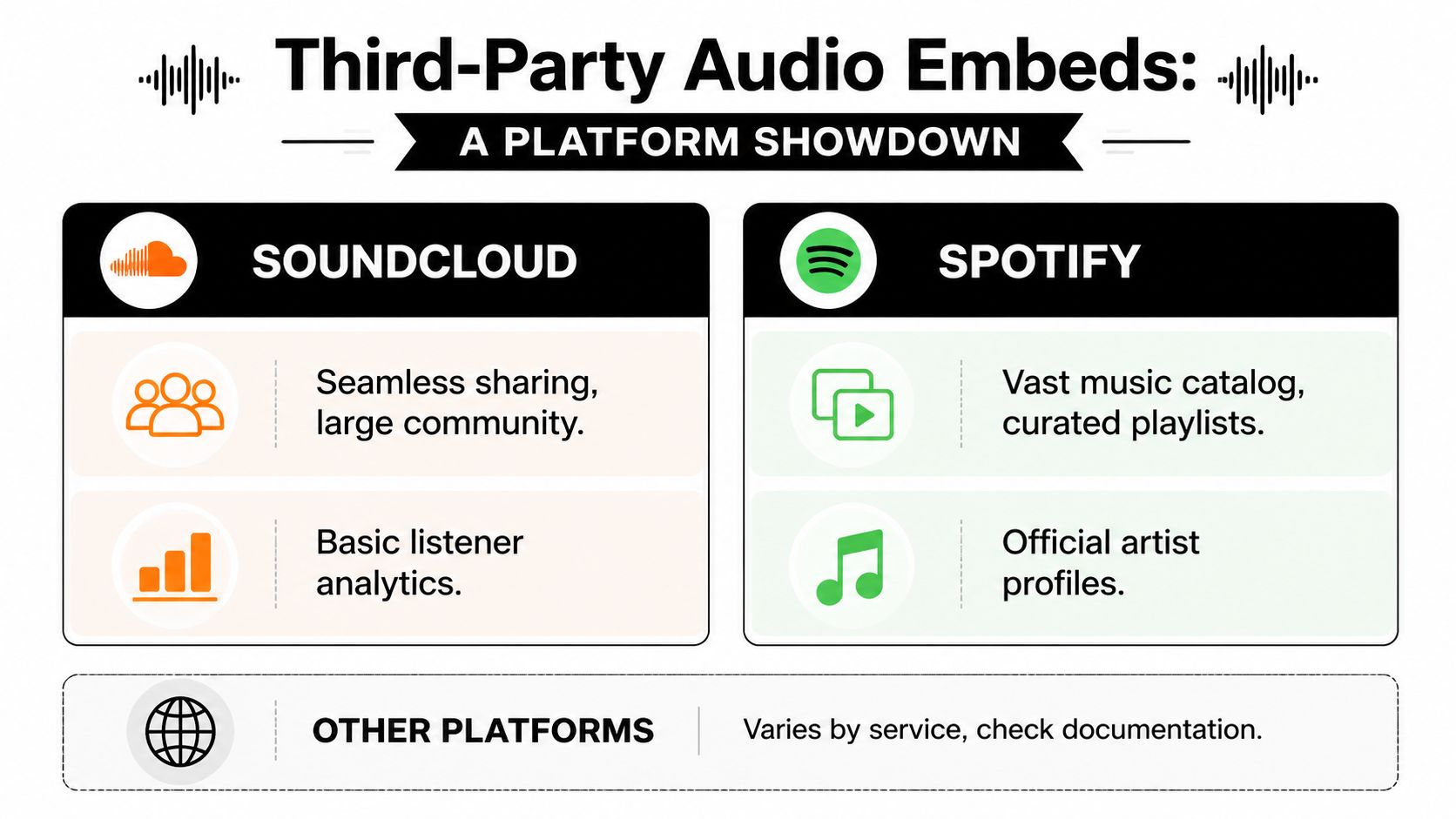
Most organizations don't host every audio asset themselves. They publish on podcast platforms, creator platforms, or streaming services, then want that same content embedded on their own site. In those cases, a third-party audio player embed is usually the easiest route.
The workflow is usually similar across vendors. You create or choose the track in the platform dashboard, generate embed code or a shareable widget, then paste it into an HTML or embed block on your site. Common Ninja's MP3 player guide also notes that commercial embed widgets typically load asynchronously so they don't slow down the rest of the page, which is one reason these tools are popular with non-technical teams.
For community teams, the practical steps are straightforward:
Publish the audio on the platform
Upload the episode, playlist, or track and make sure it's publicly embeddable.
Open the share or embed menu
Most services place this near the track title, player controls, or publishing options.
Copy the embed code
This is often an iframe, though some vendors use a script-based widget.
Paste it into your site
Use a Custom HTML block, embed widget, or code module, depending on your CMS.
Test on mobile and desktop
Don't assume the player will resize well just because it looked fine in the editor.
A third-party embed often looks like this in principle:
You'll replace the src with the actual code from the service you use. The main thing to understand is that the platform controls the player UI, playback behavior, and often the metadata display.
SoundCloud tends to be useful when you want broad sharing, playlist support, and a player that's commonly recognized across blogs and community sites. It's often a comfortable fit for public-facing audio, event playlists, or creator-friendly publishing.
Spotify is often the right choice when the content already lives in Spotify's ecosystem and you want users to recognize the format immediately. It's common for podcast episodes, official shows, and music-related content tied to artist or brand profiles.
The tradeoff is control. These services make embedding easy, but you usually accept their player interface, branding, and limitations around layout.
If your team wants “just paste the code and move on,” an iframe-based third-party player is hard to beat.
| Platform | Best For | Customization | Analytics | Free Tier |
|---|---|---|---|---|
| SoundCloud | Public tracks, playlists, easy sharing | Limited visual control through platform embed options | Platform-level listener data varies by account and setup | Often available, with platform limits |
| Spotify | Podcast episodes, music content, recognized ecosystem | Limited control over player appearance | Platform analytics depend on the creator setup | Often available for listening and distribution workflows |
| Vendor widget players | Branded site playback, hosted collections, custom site layouts | Usually stronger than marketplace-style embeds | Often stronger when tied to dashboard settings or event tracking | Varies by vendor |
| Self-hosted with native player | Full control over page placement and hosting | Minimal native styling unless custom controls are built | Depends on your site analytics implementation | No platform fee for the player itself |
Third-party embeds are easy until they aren't. Common failure points include:
Triton Digital also notes, in vendor guidance summarized in the verified material, that some iframe player URLs can be manually adjusted with query parameters for features like start-time control. That's useful when you need to begin playback at a specific moment in a conference recording or sponsored segment.
The simple rule is this. Use third-party embeds when distribution convenience matters more than pixel-level control.
For the majority of organizations, the question isn't whether audio can be embedded. It's where to paste it in the tools they already use. WordPress is the clearest example because it offers several different paths, and the same logic carries over to other platforms with rich text or HTML fields.
Here's the WordPress block interface many teams start from:

If you're publishing in WordPress, you'll usually use one of these:
The right choice depends on where the audio lives.
If your organization already has the MP3 file, the Audio block is the cleanest route. Upload the file, place the block, and WordPress handles the player output. This is usually the least confusing option for staff editors.
If the audio lives on a third-party platform, try the Embed block first. Some systems recognize supported URLs and convert them automatically into embedded media. When that doesn't work, use Custom HTML and paste the full code snippet.
Many community platforms, membership tools, and page builders use different names for the same concept. You'll usually find some variation of:
That's enough to publish most audio embeds.
The key is understanding which input the platform accepts. Some systems allow full iframe code. Others only support a media URL. Others sanitize scripts but allow iframes. If your embed keeps disappearing after save, that's often the reason.
For teams organizing resource libraries, podcast archives, or learning hubs, a reference like this content repurposing glossary embed is helpful because it shows the broader idea of turning one content asset into a reusable embedded format across pages.
Before you click publish, check these items:
If you're comparing systems for this kind of publishing flexibility, guides to membership website builders for organizations can help you evaluate whether your current platform makes embeds easy or constantly forces workarounds.
A short walkthrough can also help if your team is visual and process-driven:
Don't treat “embed support” as a yes-or-no feature. One platform may support pasted URLs but not custom code. Another may support iframes but strip scripts. The content team needs to know that before launch day, not during a live event recap or member announcement.
A player that works isn't always a player that serves your members well. Professional organizations often need branded pages, accessible controls, predictable behavior, and content that remains useful long after the initial publish date.
Native players are fast to deploy, but eventually some teams want more. They want a branded play button, chapter links, playlist navigation, or behavior that matches the rest of the site. That's where custom controls built on the browser media APIs make sense.
Typical reasons to go custom include:
This work is better suited to a developer than a general content editor. The risk isn't only design complexity. It's accessibility. A custom player can look polished and still fail basic keyboard navigation if it isn't built carefully.
One recurring mistake is trying to hide the player or make playback happen automatically in the background. This accessibility-focused guidance on hidden audio players and autoplay points out two practical issues. Hidden audio players can be undiscoverable to keyboard and screen-reader users, and most browsers block autoplay unless the user has interacted with the site. For professional organizations, the better pattern is visible controls, a transcript, and no dependence on autoplay for core content delivery.
Users shouldn't have to guess where the audio is or why nothing is playing.
That sounds obvious, but it gets missed all the time in branded implementations.
A solid embedded audio experience usually includes:
If your team is building custom blocks inside WordPress, this is also where implementation quality matters. Accessibility issues often creep in through bespoke components, so a technical reference on remediating custom WordPress block errors is worth keeping nearby during QA.
Professional audio publishing isn't only about the player UI. It's also about how the asset is described and reused later. The preservation world has treated embedded audio metadata as a serious interoperability problem for years.
The Library of Congress blog on embedded audio metadata and IIIF annotations documented work in 2022 on reusing cue chunk data in broadcast WAVE files for web annotations, and noted that FADGI, an interagency group of 20 U.S. federal agencies led by the Library of Congress, updated its guidelines to include inserting cue points with contextual metadata. That matters because embedded audio has moved beyond simple playback. It can also support discovery, annotation, and long-term reuse.
For community teams, the practical takeaway is simpler than the archival terminology. Label your files well. Name segments clearly. Preserve titles and descriptive context. A player with vague labels and no transcript is harder to use today and harder to archive tomorrow.
If your organization is extending audio into a branded member app, the same UX standards should carry over to mobile surfaces too, especially when reviewing white-label mobile app experiences for communities.
Publishing the player isn't the finish line. If the audio loads poorly or nobody can measure listens, the embed is doing only half its job.
Performance comes first. Keep audio files hosted over standard web delivery, avoid bloating pages with Data URLs, and test repeat playback behavior under normal browser caching. For third-party players, validate how the embed behaves inside your page builder, theme, and consent setup before launch.
The most useful question isn't “Did the page get views?” It's “Did people press play, and what did they listen to?”
That's where analytics-enabled players become more valuable than bare playback. Sonaar's Google Analytics setup for audio player statistics shows a concrete implementation in which plays and downloads can be tracked in GA4. In that setup, the playlist maps to the custom dimension “Playlist” using the event parameter event_category, and the track title maps to “Audio Track” using event_label. It also notes that custom stats may take up to 24 hours to appear after setup, which is an important operational detail when you're testing.
Don't debug analytics five minutes after installation and assume it failed. Some reporting lag is normal.
When an audio player embed breaks, check these first:
For community teams trying to prove content value, this is where broader analytics and insights practices for digital engagement start to matter. Audio shouldn't be a blind spot. It should be measurable content with clear listening signals.
If your organization wants one place to publish content, manage members, support events, and deliver a branded digital experience, GroupOS is built for that job. It gives professional communities a unified platform for content delivery, engagement, registrations, and member management so audio, video, courses, and event follow-up can live in the same system instead of being scattered across separate tools.